Microsoft Windows 8.1 Pro

Installation guide Microsoft Windows 8.1 Professional 32 & 64 Bits

DOWNLOAD

Microsoft Windows 8.1 Professional

Download the desired version with the following download link:

(If your device has more than 4 Gb of RAM, we recommend the 64-bit version)

SYSTEM REQUIREMENTS

  • 1 gigahertz (GHz) or faster 32-bit (x86) or 64-bit (x64) processor
  • 1 gigabyte (GB) RAM (32 bit) or 2 GB RAM (64 bit)
  • 16 GB of available hard disk space (32-bit) or 20 GB (64-bit)
  • DirectX 9 graphics device with WDDM 1.0 or higher driver


WINDOWS VERSION

Make sure your Microsoft Windows version matches the Microsoft Windows version of the key.

CHECK CONNECTION

Verify that you have a stable Internet connection during installation. Please follow these steps for a successful activation.

ONLINE ACTIVATION

If you already have Microsoft Windows 8.1 Professional installed, Try online activation 2-3 times (if successful ignore the rest)

After installing the Operating System. Let’s go and right-click on My Computer and select the properties option and click on the Activate Microsoft Windows option, then activate and enter the key provided.

INSTALLATION

It is recommended that you complete the product installation and activation before signing in with your Microsoft account.

After downloading, burn the ISO file to DVD or save it to USB. Once you boot your PC / Laptop with the DVD / Pendrive the installation program will run. Follow the guided steps of the program to complete its installation.

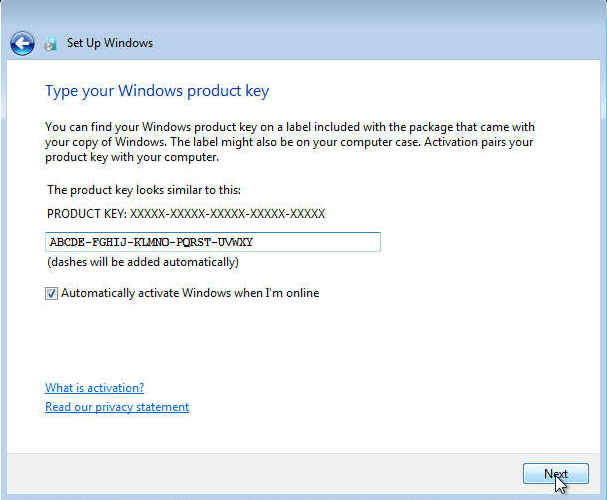
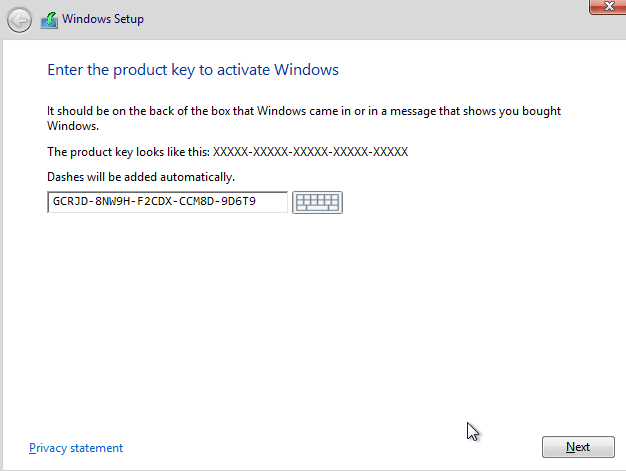
If the key is not accepted during installation, enter the generic Microsoft key: GCRJD-8NW9H-F2CDX-CCM8D-9D6T9. This is a key for installation only. When you’re done, enter the new password.

After installing the Operating System. Let’s go and right-click on My Computer and select the properties option and click on the Activate Microsoft Windows option, then activate and enter the key provided.

IF THE ONLINE ACTIVATION WAS NOT SUCCESSFUL

Activate your password by phone: to do this, select «Show other activation methods» -> «Next» -> «Automatic during Microsoft Windows activation. Use the phone system ».

Choose your location and call one of the numbers shown.

  • Activation through Microsoft’s central activation center:
  • From the UK, please dial: 900 150 889
  • Please try 2 or 3 times in case it doesn’t work right away.
  • Activation computer does not always recognize input immediately

NOTE

Microsoft has gradually phased out support for some older products. Therefore, telephone activation is no longer possible. If you have any problems or questions during the Installation, please contact our 24/7 customer service.

Microsoft Windows 10 Home

Installation guide Microsoft Windows 10 Home 32 & 64 Bits​

DOWNLOAD

Microsoft Windows 10 Home

Download the desired version with the following download link.

(If your device has more than 4 Gb of RAM, we recommend the 64-bit version)

SYSTEM REQUIREMENTS

  • 1 gigahertz (GHz) or faster 32-bit (x86) or 64-bit (x64) processor
  • 1 gigabyte (GB) RAM (32 bit) or 2 GB RAM (64 bit)
  • 16 GB of available hard disk space (32-bit) or 20 GB (64-bit)
  • DirectX 9 graphics device with WDDM 1.0 or higher driver


FIRST STEPS

WINDOWS VERSION

Make sure your Microsoft Windows version matches the Microsoft Windows version of the key.

CHECK CONNECTION

Verify that you have a stable Internet connection during installation. Please follow these steps for a successful activation.

ONLINE ACTIVATION

If you already have Microsoft Windows 10 Home installed,
Try online activation 2-3 times (if successful ignore the rest)

After installing the Operating System. Let’s go and right-click on My Computer and select the properties option and click on the Activate Microsoft Windows option, then activate and enter the key provided.

IF THE ONLINE ACTIVATION WAS NOT SUCCESSFUL

Activate your password by phone: to do this, select «Show other activation methods» -> «Next» -> «Automatic during Microsoft Windows activation. Use the phone system ».

Choose your location and call one of the numbers shown.

  • Activation through Microsoft’s central activation center:
  • From the UK, please dial: 900 150 889
  • Please try 2 or 3 times in case it doesn’t work right away.
  • Activation computer does not always recognize input immediately

INSTALLATION

It is recommended that you complete the product installation and activation before signing in with your Microsoft account.

After downloading, burn the ISO file to DVD or save it to USB. Once you boot your PC / Laptop with the DVD / Pendrive the installation program will run. Follow the guided steps of the program to complete its installation.

After installing the Operating System. Let’s go and right-click on My Computer and select the properties option and click on the Activate Microsoft Windows option, then activate and enter the key provided.

DOWNLOADS IN OTHER LANGUAGES

Microsoft Windows 10 Home

Download the desired version with the following download link.

(If your device has more than 4 Gb of RAM, we recommend the 64-bit version)

NOTE

Microsoft has gradually phased out support for some older products. Therefore, telephone activation is no longer possible. If you have any problems or questions during the Installation, please contact our 24/7 customer service.

For faster assistance, you can also reach us directly through our live chat, available 24/7 on our website.

Microsoft Windows 10 Pro

Installation guide Microsoft Windows 10 Professional

DOWNLOAD

Microsoft Windows 10 Pro

Download the desired version with the following download link.

(If your device has more than 4 Gb of RAM, we recommend the 64-bit version)

SYSTEM REQUIREMENTS

  • 1 gigahertz (GHz) or faster 32-bit (x86) or 64-bit (x64) processor
  • 1 gigabyte (GB) RAM (32 bit) or 2 GB RAM (64 bit)
  • 16 GB of available hard disk space (32-bit) or 20 GB (64-bit)
  • DirectX 9 graphics device with WDDM 1.0 or higher driver


FIRST STEPS

WINDOWS VERSION

Make sure your Microsoft Windows version matches the Microsoft Windows version of the key.

CHECK CONNECTION

Verify that you have a stable Internet connection during installation. Please follow these steps for a successful activation.

ONLINE ACTIVATION

If you already have Microsoft Windows 10 Pro installed, try online activation 2-3 times (if successful ignore the rest)

After installing the Operating System. Let’s go and right-click on My Computer and select the properties option and click on the Activate Microsoft Windows option, then activate and enter the key provided.

IF THE ONLINE ACTIVATION WAS NOT SUCCESSFUL

Activate your password by phone: to do this, select «Show other activation methods» -> «Next» -> «Automatic during Microsoft Windows activation. Use the phone system ».

Choose your location and call one of the numbers shown.

  • Activation through Microsoft’s central activation center:
  • From the UK, please dial: 900 150 889
  • Please try 2 or 3 times in case it doesn’t work right away.
  • Activation computer does not always recognize input immediately

TO UPGRADE FROM WINDOWS 11 HOME TO WINDOWS 11 PROFESSIONAL

To upgrade from Windows 10 Home to Windows 10 Professional, you can use a generic product key for the initial upgrade. This key won’t permanently activate Windows; it simply allows you to switch editions to Pro. After that, you can enter the purchased license key to fully activate Windows.

Here’s the process:

1. Go to Settings:

    • Open Settings > System > Activation.


2. Change the product key:

    • Select Change product key and enter the generic key for Windows 10 Professional: VK7JG-NPHTM-C97JM-9MPGT-3V66T.
    • Press Next and follow the instructions. This will initiate the upgrade to the Pro edition.
    • If you get any error on the screen, please disable the internet connection for a moment and repeat this step (2), your PC will automatically restart, once restarted you can reconnect your internet and continue with the following steps.
    •  
    •  

    •       images with possible errors (0x803fa067 0xC004F069)

3. Enter your purchased activation key:

    • Once the system has been updated to Windows 10 Professional, go back to Settings > System > Activation.
    • Select Change product key again and enter the purchased Windows 10 Professional license key.
    • Follow the instructions to activate the license.


4. Restart the device if needed:

    • After activation, the system may ask you to restart to apply all changes.
    • Following these steps, you should have Windows 10 Professional activated on your device.

INSTALLATION

It is recommended that you complete the product installation and activation before signing in with your Microsoft account.
 
NOTE: If you are upgrading from Microsoft Windows 10 Home, you don’t need to download the software. Please use the instructions below to update your computer to Microsoft Windows 10 Pro.

UPGRADE FROM WINDOWS 10 HOME:

It is recommended that you complete the product installation and activation before signing in with your Microsoft account.

  1. Deactivate your internet connection for the following process!
  2. Open the Settings app via the start menu (or the start page in tablet mode) and select the category Update and Security.
  3. Select Activation and then click the button Change Product Key. Enter the generic Microsoft Windows 10 Pro key VK7JG-NPHTM-C97JM-9MPGT-3V66T. This key turns Microsoft Windows 10 Home into Microsoft Windows 10 Pro.
  4. After restarting to upgrade to Microsoft Windows 10 Pro, the operating system is no longer activated.
 

Then enter the valid Microsoft Windows 10 Pro key for activation.

In some cases, the update might abort at 100% with an error. If that happens, restart manually and your system will have been upgraded to Microsoft Windows 10 Pro. You can now activate it using the provided key.

NEW INSTALLATION:

After downloading, burn the ISO file to DVD or save it to USB. Once you boot your PC / Laptop with the DVD / Pendrive the installation program will run. Follow the guided steps of the program to complete its installation.

After installing the Operating System. Let’s go and right-click on My Computer and select the properties option and click on the Activate Microsoft Windows option, then activate and enter the key provided.

DOWNLOADS IN OTHER LANGUAGES

Microsoft Windows 10 Pro

Download the desired version with the following download link.

(If your device has more than 4 Gb of RAM, we recommend the 64-bit version)

NOTE

Microsoft has gradually phased out support for some older products. Therefore, telephone activation is no longer possible. If you have any problems or questions during the Installation, please contact our 24/7 customer service.

For faster assistance, you can also reach us directly through our live chat, available 24/7 on our website.

MS Microsoft Office 2019 Pro Plus

Installation guide Microsoft Office 2019 Professional Plus 32 & 64 Bits

DOWNLOAD

Download the program with the following download link


If you need the installer in another language or another version, click here.

This EXE file is the basis for the installation of the product.

SYSTEM REQUIREMENTS

Please make sure your computer meets the minimum system requirements for installing this software:

  • 1 gigahertz (GHz) or faster 32-bit (x86) or 64-bit (x64) processor
  • 1 gigabyte (GB) RAM (32 bit) or 4 GB RAM (64 bit)
  • 4 GB of available hard disk space
  • DirectX 9 graphics device with WDDM 1.0 or higher driver

INSTALLATION

Before installing, please make sure any previous versions of Microsoft Office have been removed and restart your computer. You may refer to this help document from Microsoft in case you need assistance with this step.

Once the download is complete, follow these steps: 

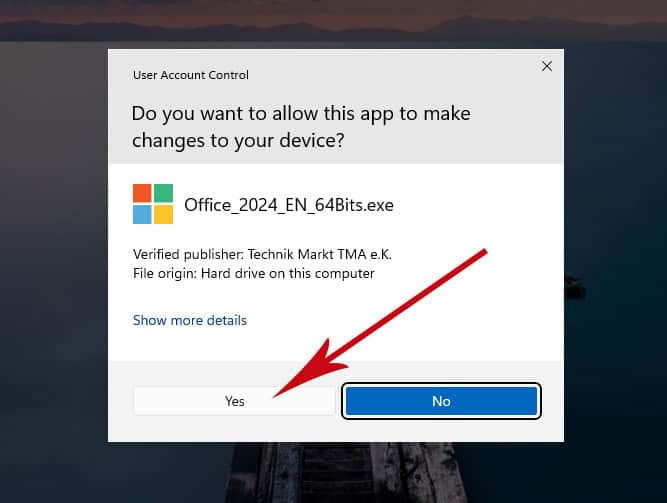
Find the downloaded installer file (it will usually be located in your Downloads folder). Right-click on the file and select “Run as administrator”. You will be asked if you want to let the app make changes to your device. Click on “Yes”.

Important: you need to be online to complete the installation, as the installer will download the needed files directly from Microsoft.

It is recommended that you complete the product installation and activation before signing in with your Microsoft account.

  1. Right Click on the file and then select the option, “Run as administrator”

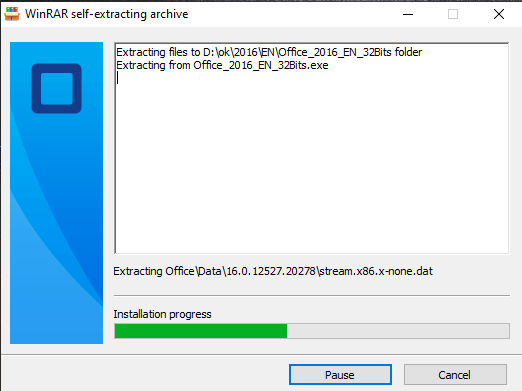
2. Click on the “Install” button. This action unzips the application and will install your product.

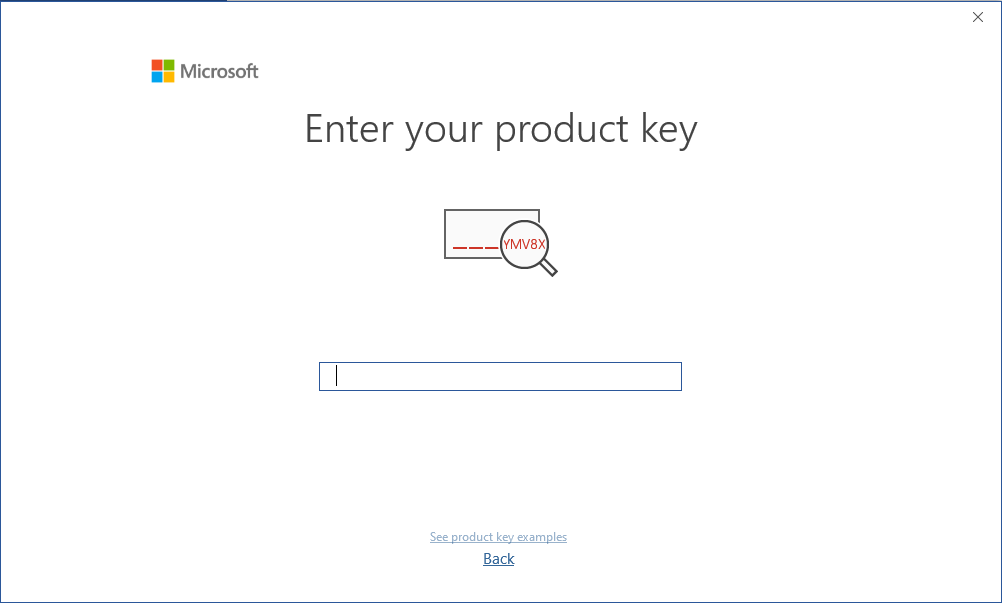
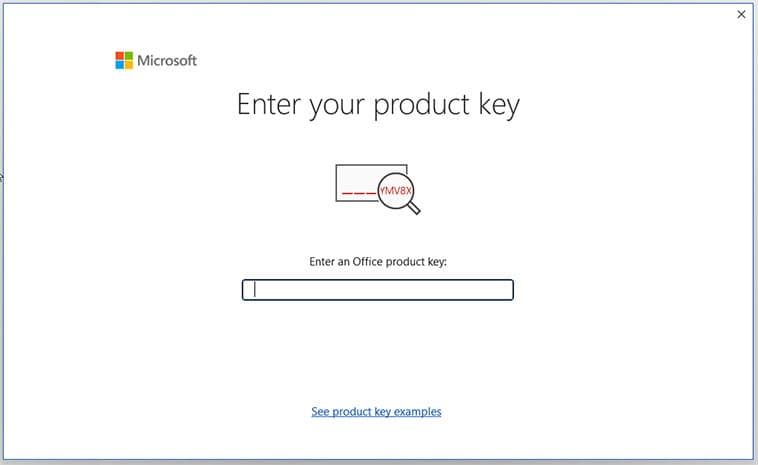
Once the download is complete and the installation of the program is complete, enter the activation key when running any application from the Microsoft Office package, it will be the first thing that will ask you.

LICENSE AND ACTIVATION

Remember, the key you have purchased is a prepaid code that is not compatible with the pre-installed software. This is an original Microsoft product. Uninstall the previous version of Microsoft Office that you have on your PC and restart your computer. This is important to avoid compatibility problems.

DOWNLOADS IN OTHER LANGUAGES

NOTE

  • Microsoft has gradually phased out support for some older products. Therefore, telephone activation is no longer possible. If you have any problems or questions during the Installation, please contact our 24/7 customer service.

    For faster assistance, you can also reach us directly through our live chat, available 24/7 on our website.

MS Microsoft Office 365 Pro Plus

Installation guide Microsoft Office 365 Professional Plus Microsoft Windows/MacOs Pc 32 & 64 Bits

LOG IN

Open the link and log in with the account and password delivered to your email.

https://login.microsoftonline.com


NEW PASSWORD

Enter a new password to take possession of your purchased product. In the first field use the password sent to your e-mail, in the next two enter the new password of your choice. Make sure it contains at least 8 digits with at least one capital letter.

Then enter your phone number and email, where you will receive the authentication codes to continue the process.

MY ACCOUNT

Enter a new password to take possession of your purchased product. In the first field use the password sent to your e-mail, in the next two enter the new password of your choice. Make sure it contains at least 8 digits with at least one capital letter. Then enter your phone number and email, where you will receive the authentication codes to continue the process.

SYSTEM REQUIREMENTS

Please make sure your computer meets the minimum system requirements for installing this software:

  • MacOS 10.12: Sierra (Fuji), macOS 10.13: High Sierra (Lobo), macOS 10.14: Mojave (Liberty)
  • Microsoft Windows 7 (SP1) 8, 10, Microsoft Windows Server 2008, 2012 R2. .NET Framework 3.5
  • 1 gigahertz (GHz) or faster 32-bit (x86) or 64-bit (x64) processor
  • 1 gigabyte (GB) RAM (32 bit) or 4 GB RAM (64 bit)
  • 4 GB of available hard disk space
  • DirectX 9 graphics device with WDDM 1.0 or higher driver

INSTALLATION ONLINE

Find the downloaded installer file (it will usually be located in your Downloads folder). Right-click on the file and select “Run as administrator”. You will be asked if you want to let the app make changes to your device. Click on “Yes”.

Important: you need to be online to complete the installation, as the installer will download the needed files directly from Microsoft.

It is recommended that you complete the product installation and activation before signing in with your Microsoft account.

After you have chosen all the desired options, click on “Install Microsoft Office.”

The installation file will be downloaded, choose “savefile” when required.

PROGRESS BAR

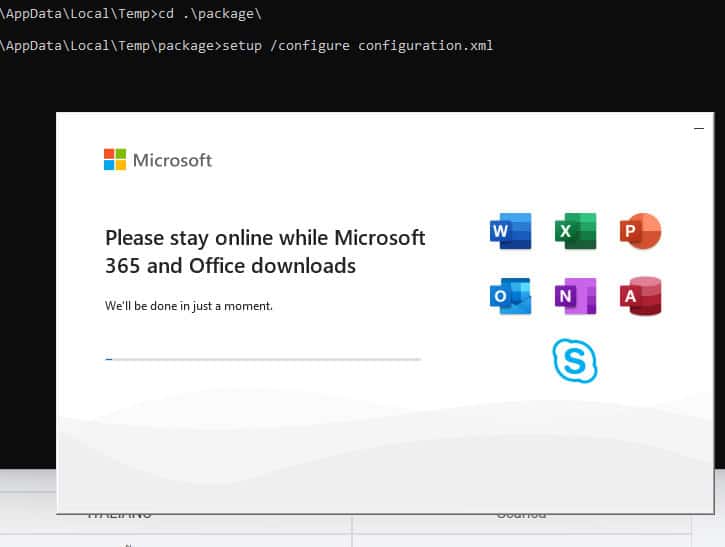
You will see the progress bar of the installation.

Once the installation is complete click “Close”.

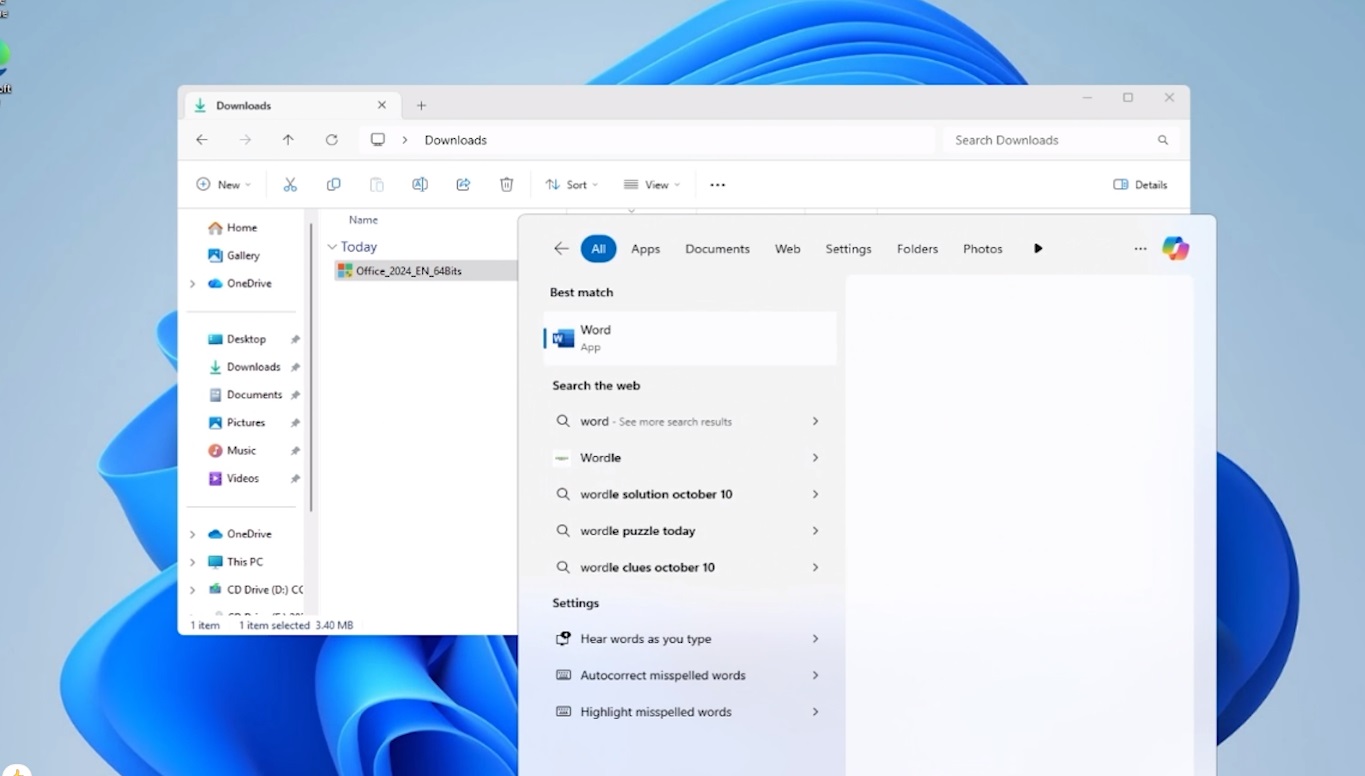
Now you can find the Microsoft Office packages in your Start Menu or using the Microsoft Windows search option.

VERIFY ACTIVATION

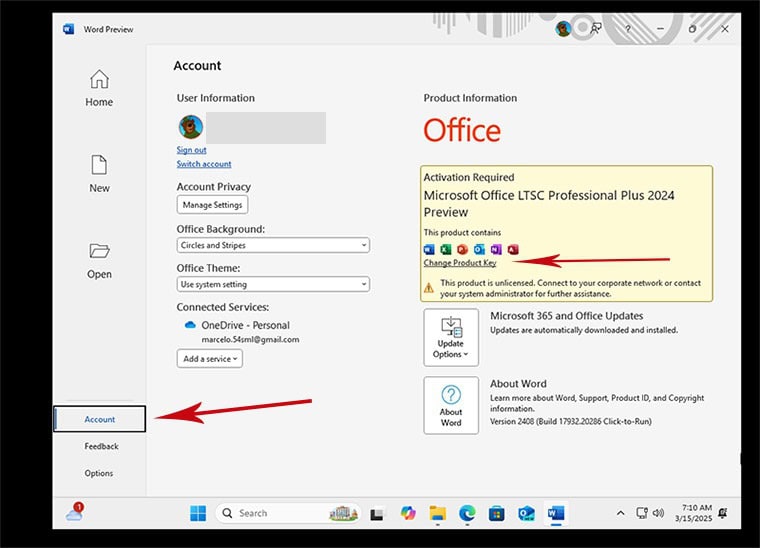
In order to verify that the product activation has been carried out successfully, you can open any Microsoft Office application, such as Excel, and go to File-> Account ”. You will see the Microsoft account associated with the product.

LICENSE AND ACTIVATION

The product you have purchased comes pre-activated on a Microsoft account, please follow these steps to take ownership of the account and install the product on your computer or device. Uninstall the previous version of Microsoft Office that you have on your PC and restart your computer. This is important to avoid compatibility problems.

DOWNLOADS IN OTHER LANGUAGES

Download the program with the following download link

LANGUAGE 64 BITS 32 BITS
DEUTSCH Herunterladen Herunterladen
ENGLISH Download Download
FRANÇAIS Télécharger Télécharger
ITALIANO Scarica Scarica
ESPAÑOL Descargar Descargar
PORTUGUES Descarga Descarga
DUTCH Downloaden Downloaden
FINNISH Lataa Lataa
NORWEGIAN Last Ned Last Ned
SWEDISH Download Download
DANISH Download Download
 

NOTE

  • Microsoft has gradually phased out support for some older products. Therefore, telephone activation is no longer possible. If you have any problems or questions during the Installation, please contact our 24/7 customer service.

    For faster assistance, you can also reach us directly through our live chat, available 24/7 on our website.

Microsoft Project 2016 Pro

Installation guide Microsoft Project 2016 Professional 32 & 64 Bits

DOWNLOAD

Download the program with the following download link


This ISO file is the basis for the installation of the product.

SYSTEM REQUIREMENTS

Please make sure your computer meets the minimum system requirements for installing this software:

  • 1 gigahertz (GHz) or faster 32-bit (x86) or 64-bit (x64) processor
  • 1 gigabyte (GB) RAM (32 bit) or 4 GB RAM (64 bit)
  • 4 GB of available hard disk space
  • DirectX 9 graphics device with WDDM 1.0 or higher driver

INSTALLATION

Find the downloaded installer file (it will usually be located in your Downloads folder). Right-click on the file and select “Run as administrator”. You will be asked if you want to let the app make changes to your device. Click on “Yes”.

Important: you need to be online to complete the installation, as the installer will download the needed files directly from Microsoft.

It is recommended that you complete the product installation and activation before signing in with your Microsoft account.

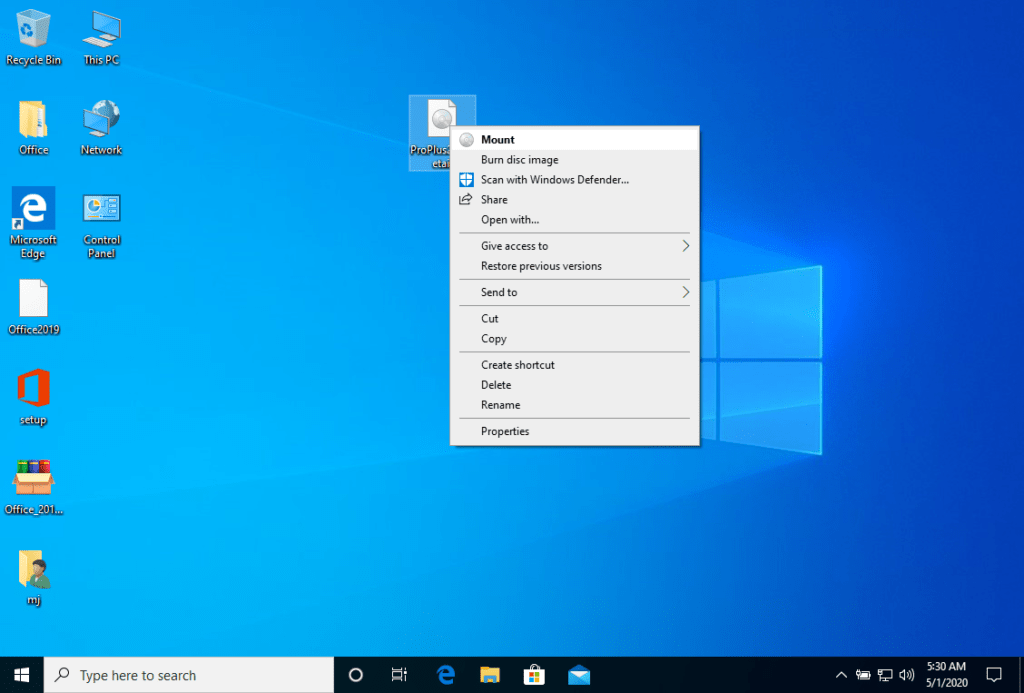
Once the download is complete, right click on the downloaded file and choose the “Mount” option from the dropdown menu


After the ISO file that you downloaded is mounted, you can access it from your Computer as a DVD drive. Here you can run the installer.

Complete the program installation and enter the “activation key” during or at the end of the process.
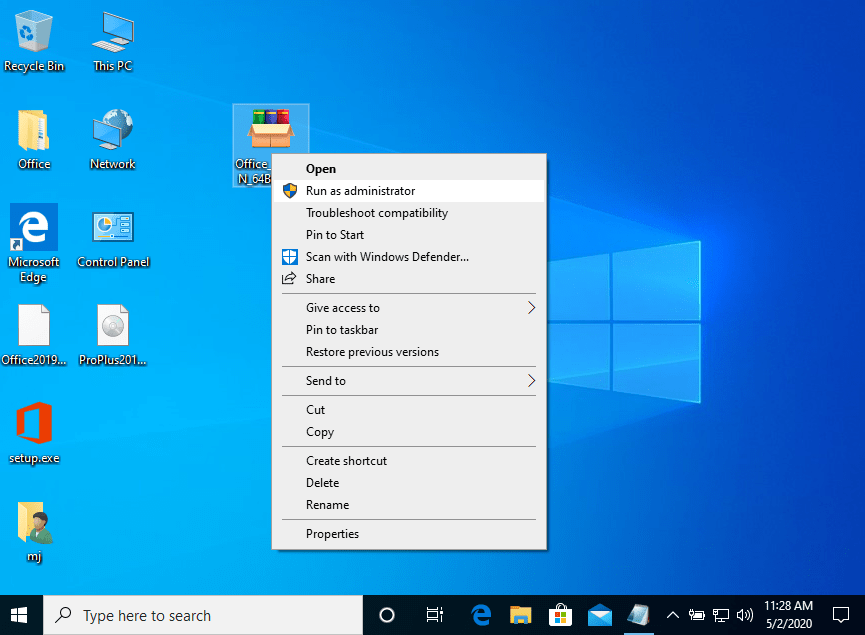
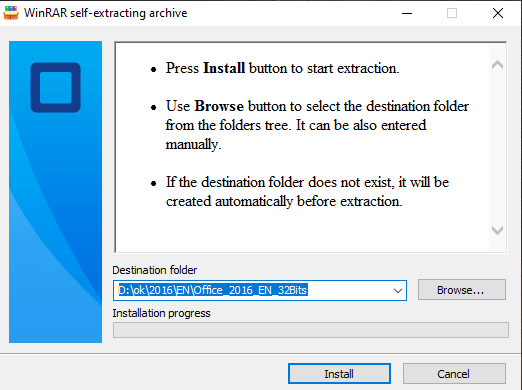
Once the download is complete and the installation of the program is complete, enter the activation key when running any application from the Microsoft Office package, it will be the first thing that will ask you.

LICENSE AND ACTIVATION

Remember, the key you have purchased is a prepaid code that is not compatible with the pre-installed software. This is an original Microsoft product. Uninstall the previous version of Microsoft Office that you have on your PC and restart your computer. This is important to avoid compatibility problems.

PROGRAM TO ASSEMBLE ISO FILE

The mounted image should appear on your Computer. If this does not appear (AS IN WINDOWS 7) you must use an alternative program to mount the product image, such as WinCDEmu which can be downloaded from the following link:

WinCDEmu

Use this program to create a virtual disk so that you can install your program

DOWNLOADS IN OTHER LANGUAGES

Download the program with the following download link

LANGUAGE 32 BITS 64 BITS
DEUTSCH Herunterladen Herunterladen
ENGLISH Download Download
ESPAÑOL Download Download


NOTE

Microsoft has gradually phased out support for some older products. Therefore, telephone activation is no longer possible. If you have any problems or questions during the Installation, please contact our 24/7 customer service.

For faster assistance, you can also reach us directly through our live chat, available 24/7 on our website.

Microsoft Windows 11 Pro

Installation guide Microsoft Windows 11 Professional

DOWNLOAD

Microsoft Windows 11 Pro

Download the desired version with the following download link.

(If your device has more than 4 Gb of RAM, and 64-bit version)

SYSTEM REQUIREMENTS

Read this very carefully

These are the minimum system requirements for installing Microsoft Windows 11 on a PC. If your device does not meet these requirements, you may not be able to install Microsoft Windows 11.

You can download the application PC Health Check that will tell you if your device supports Microsoft Windows 11.

Processor1 gigahertz (GHz) or faster with 2 or more cores on a compatible 64-bit processor or System on a Chip (SoC).
RAM4 gigabytes (GB).
Storage64 GB or larger storage device Note: See below under “More information on storage space to keep Microsoft Windows 11 up-to-date” for more details.
System firmwareUEFI, Secure Boot capable.
TPMTrusted Platform Module (TPM) version 2.0. Check here for instructions on how your PC might be enabled to meet this requirement.
Graphics cardCompatible with DirectX 12 or later with WDDM 2.0 driver.
DisplayHigh definition (720p) display that is greater than 9” diagonally, 8 bits per color channel.
Internet connection and Microsoft accountMicrosoft Windows 11 Home edition requires internet connectivity and a Microsoft account.
Switching a device out of Microsoft Windows 11 Home in S mode also requires internet connectivity. Learn more about S mode here..
For all Microsoft Windows 11 editions, internet access is required to perform updates and to download and take advantage of some features. A Microsoft account is required for some features.

FIRST STEPS

WINDOWS VERSION

Make sure your Microsoft Windows version matches the Microsoft Windows version of the key.

CHECK CONNECTION

Verify that you have a stable Internet connection during installation. Please follow these steps for a successful activation.

ONLINE ACTIVATION

If you already have Microsoft Windows 11 Pro installed, try online activation 2-3 times (if successful ignore the rest)

After installing the Operating System. Let’s go and right-click on My Computer and select the properties option and click on the Activate Microsoft Windows option, then activate and enter the key provided.

IF THE ONLINE ACTIVATION WAS NOT SUCCESSFUL

Activate your password by phone: to do this, select «Show other activation methods» -> «Next» -> «Automatic during Microsoft Windows activation. Use the phone system ».

Choose your location and call one of the numbers shown.

  • Activation through Microsoft’s central activation center:
  • From the UK, please dial: 900 150 889
  • Please try 2 or 3 times in case it doesn’t work right away.
  • Activation computer does not always recognize input immediately

TO UPGRADE FROM WINDOWS 11 HOME TO WINDOWS 11 PROFESSIONAL

To upgrade from Windows 11 Home to Windows 11 Professional, you can use a generic product key for the initial upgrade. This key won’t permanently activate Windows; it simply allows you to switch editions to Pro. After that, you can enter the purchased license key to fully activate Windows.

Here’s the process:

1. Go to Settings:

    Open Settings > System > Activation.

2. Change the product key:

  • Select Change product key and enter the generic key for Windows 11 Professional: VK7JG-NPHTM-C97JM-9MPGT-3V66T.
  • Press Next and follow the instructions. This will initiate the upgrade to the Pro edition.
  • If you get any error on the screen, please disable the internet connection for a moment and repeat this step (2), your PC will automatically restart, once restarted you can reconnect your internet and continue with the following steps.


      images with possible errors (0x803fa067 0xC004F069)

3. Enter your purchased activation key:

  • Once the system has been updated to Windows 11 Pro, go back to Settings > System > Activation.
  • Select Change product key again and enter the purchased Windows 11 Pro license key.
  • Follow the instructions to activate the license.

4. Restart the device if needed:

  • After activation, the system may ask you to restart to apply all changes.
  • Following these steps, you should have Windows 11 Pro activated on your device.

INSTALLATION

NEW INSTALLATION:

It is recommended that you complete the product installation and activation before signing in with your Microsoft account.

After downloading, open the installer and follow instructions to create a bootable USB drive or an ISO file to burn to DVD. Please make sure to back up your important files and data before proceeding! Once you boot your PC / Laptop with the DVD / USB drive, the installation program will run. Follow the guided steps of the program to set it up to your preferences and complete the installation.

During the installation you will be prompted to enter the license key you received by email. In case you don’t have the key on hand, you may choose the option “I don’t have a product key” and enter the key after finishing the installation.


In case you didn’t enter the license key during installation:

After installing the Operating System, right-click on This PC in the file explorer and select the Properties option. Click on Product Key and Activation. Go to Change product key to enter the key you received by email. Your copy of Windows is now activated.


DOWNLOADS IN OTHER LANGUAGES

Microsoft Windows 11 Pro

Download the desired version with the following download link.

LANGUAGE64 BITS
DEUTSCHHerunterladen
ENGLISHDownload
FRANÇAISTélécharger
ITALIANOScarica
ESPAÑOLDescarga
NEDERLANDSDownloaden
SVERIGELadda ner

(If your device has more than 4 Gb of RAM, and 64-bit version)

NOTE

Microsoft has gradually phased out support for some older products. Therefore, telephone activation is no longer possible. If you have any problems or questions during the Installation, please contact our 24/7 customer service.

For faster assistance, you can also reach us directly through our live chat, available 24/7 on our website.

Microsoft Project 2019 Pro

Installation guide Microsoft Project 2019 Professional 32 & 64 Bits

DOWNLOAD

Download the program with the following download link

This EXE file is the basis for the installation of the product.

SYSTEM REQUIREMENTS

Please make sure your computer meets the minimum system requirements for installing this software:

  • 1 gigahertz (GHz) or faster 32-bit (x86) or 64-bit (x64) processor
  • 1 gigabyte (GB) RAM (32 bit) or 4 GB RAM (64 bit)
  • 4 GB of available hard disk space
  • DirectX 9 graphics device with WDDM 1.0 or higher driver

INSTALLATION

Find the downloaded installer file (it will usually be located in your Downloads folder). Right-click on the file and select “Run as administrator”. You will be asked if you want to let the app make changes to your device. Click on “Yes”.

Important: you need to be online to complete the installation, as the installer will download the needed files directly from Microsoft.

Once the download is complete, follow these steps:

It is recommended that you complete the product installation and activation before signing in with your Microsoft account.

  1. Right Click on the file and then select the option, “Run as administrator”
  1. Click on the “Install” button. This action unzips the application and will install your product.

Once the download is complete and the installation of the program is complete, enter the activation key when running any application from the Microsoft Office package, it will be the first thing that will ask you.

LICENSE AND ACTIVATION

Remember, the key you have purchased is a prepaid code that is not compatible with the pre-installed software. This is an original Microsoft product. Uninstall the previous version of Microsoft Office that you have on your PC and restart your computer. This is important to avoid compatibility problems.

DOWNLOADS IN OTHER LANGUAGES

Download the program with the following download link

LANGUAGE 32 BITS 64 BITS
DEUTSCH Herunterladen Herunterladen
ENGLISH Download Download
FRANÇAIS Télécharger Télécharger
ITALIANO Scarica Scarica
ESPAÑOL Download Download

NOTE

Microsoft has gradually phased out support for some older products. Therefore, telephone activation is no longer possible. If you have any problems or questions during the Installation, please contact our 24/7 customer service.

For faster assistance, you can also reach us directly through our live chat, available 24/7 on our website.

Microsoft Windows 11 Home

Installation guide Microsoft Windows 11 Home​

DOWNLOAD

Microsoft Windows 11 Home

Download the desired version with the following download link.

(If your device has more than 4 Gb of RAM, and 64-bit version)

SYSTEM REQUIREMENTS

Read this very carefully

These are the minimum system requirements for installing Microsoft Windows 11 on a PC. If your device does not meet these requirements, you may not be able to install Microsoft Windows 11.

You can download the application PC Health Check that will tell you if your device supports Microsoft Windows 11.

Processor1 gigahertz (GHz) or faster with 2 or more cores on a compatible 64-bit processor or System on a Chip (SoC).
RAM4 gigabytes (GB).
Storage64 GB or larger storage device Note: See below under “More information on storage space to keep Microsoft Windows 11 up-to-date” for more details.
System firmwareUEFI, Secure Boot capable.
TPMTrusted Platform Module (TPM) version 2.0. Check here for instructions on how your PC might be enabled to meet this requirement.
Graphics cardCompatible with DirectX 12 or later with WDDM 2.0 driver.
DisplayHigh definition (720p) display that is greater than 9” diagonally, 8 bits per color channel.
Internet connection and Microsoft accountMicrosoft Windows 11 Home edition requires internet connectivity and a Microsoft account.
Switching a device out of Microsoft Windows 11 Home in S mode also requires internet connectivity. Learn more about S mode here..
For all Microsoft Windows 11 editions, internet access is required to perform updates and to download and take advantage of some features. A Microsoft account is required for some features.


FIRST STEPS

WINDOWS VERSION

Make sure your Microsoft Windows version matches the Microsoft Windows version of the key.

CHECK CONNECTION

Verify that you have a stable Internet connection during installation. Please follow these steps for a successful activation.

ONLINE ACTIVATION

If you already have Microsoft Windows 11 Home installed, try online activation 2-3 times (if successful ignore the rest)

After installing the Operating System. Let’s go and right-click on My Computer and select the properties option and click on the Activate Microsoft Windows option, then activate and enter the key provided.

IF THE ONLINE ACTIVATION WAS NOT SUCCESSFUL

Activate your password by phone: to do this, select «Show other activation methods» -> «Next» -> «Automatic during Microsoft Windows activation. Use the phone system ».

Choose your location and call one of the numbers shown.

  • Activation through Microsoft’s central activation center:
  • From the UK, please dial: 900 150 889
  • Please try 2 or 3 times in case it doesn’t work right away.
  • Activation computer does not always recognize input immediately

INSTALLATION

NEW INSTALLATION:

It is recommended that you complete the product installation and activation before signing in with your Microsoft account.

After downloading, open the installer and follow instructions to create a bootable USB drive or an ISO file to burn to DVD. Please make sure to back up your important files and data before proceeding! Once you boot your PC / Laptop with the DVD / USB drive, the installation program will run. Follow the guided steps of the program to set it up to your preferences and complete the installation.

During the installation you will be prompted to enter the license key you received by email. In case you don’t have the key on hand, you may choose the option “I don’t have a product key” and enter the key after finishing the installation.


In case you didn’t enter the license key during installation:

After installing the Operating System, right-click on This PC  in the file explorer and select the Properties option. Click on Product Key and Activation. Go to Change product key to enter the key you received by email. Your copy of Windows is now activated.


DOWNLOADS IN OTHER LANGUAGES

Microsoft Windows 11 Home

Download the desired version with the following download link.

LANGUAGE64 BITS
DEUTSCHHerunterladen
ENGLISHDownload
FRANÇAISTélécharger
ITALIANOScarica
ESPAÑOLDownload
NEDERLANDSDownloaden
SVERIGELadda ner

(If your device has more than 4 Gb of RAM, and 64-bit version)

NOTE

Microsoft has gradually phased out support for some older products. Therefore, telephone activation is no longer possible. If you have any problems or questions during the Installation, please contact our 24/7 customer service.

For faster assistance, you can also reach us directly through our live chat, available 24/7 on our website.